Your PlayStation 5 is a powerful machine, but you might not be getting the most out of it. By tweaking a few settings and expanding your storage, you can enjoy smoother gameplay, sharper visuals, and never worry about running out of space again.
Here is how to boost your PS5 performance and storage in 2026.
Boost Performance with Key Settings
Your PS5 has several settings that can significantly improve gameplay. Here are the most effective ones to adjust.
1. Enable Performance Mode for Smoother Gameplay
The PS5 can prioritize either visual quality or frame rate. Performance Mode targets higher frame rates (up to 120 FPS) for smoother motion, while Resolution Mode prioritizes 4K graphics.
To set Performance Mode as your default:
- Go to Settings > Saved Data and Game/App Settings > Game Presets
- Select Performance Mode or Resolution Mode and choose Performance Mode
This setting applies automatically to any game that supports it. However, some games may not be optimized for Performance Mode. If you experience frame drops, switch back to Resolution Mode for that specific title.
2. Turn On VRR and 120Hz Output for Smoother Visuals
If you have a TV that supports HDMI 2.1, enable these features for a cleaner, more responsive experience:
- Variable Refresh Rate (VRR): Dynamically adjusts your TV’s refresh rate to match the game’s frame rate, eliminating screen tearing and stuttering
- Auto Low Latency Mode (ALLM): Reduces input lag so your actions appear on-screen faster
- 120Hz Output: Allows games to run at up to 120 frames per second for ultra-smooth motion
To enable them:
Your PS5 will let you know immediately if your TV does not support these features.
3. Calibrate HDR for Better Colors
Proper HDR calibration ensures vibrant colors and deeper blacks. Under Settings > Screen and Video > Video Output, select Adjust HDR and follow the on-screen wizard to make an on-screen symbol barely visible. Also, ensure HDR is set to Always On and Deep Color Output and RGB Range are set to Automatic.
4. Extend DualSense Battery Life
The DualSense controller’s battery can drain quickly, but you can conserve it:
- Reduce Controller Indicators Brightness to Dim
- Lower Trigger Effect Intensity and Vibration Intensity to Weak or turn them Off
- Lower Controller Speaker volume
- Set controllers to turn off after 10 minutes of inactivity under System > Power Saving > Set Time Until Controllers Turn Off
Expand Storage with an M.2 SSD
The PS5’s internal storage fills up fast. Installing an M.2 SSD is the best way to add space for more PS5 games.
M.2 SSD Requirements
Not every SSD works. Your drive must meet these requirements:
- Interface: PCI-Express Gen4x4 M.2 NVMe (Key M)
- Storage: 250 GB – 8 TB
- Sequential Read Speed: 5,500 MB/s or faster (recommended)
- Form Factor: 2230, 2242, 2260, 2280, or 22110
- Cooling: Must have a heatsink or heat dissipation mechanism
Step-by-Step Installation Guide
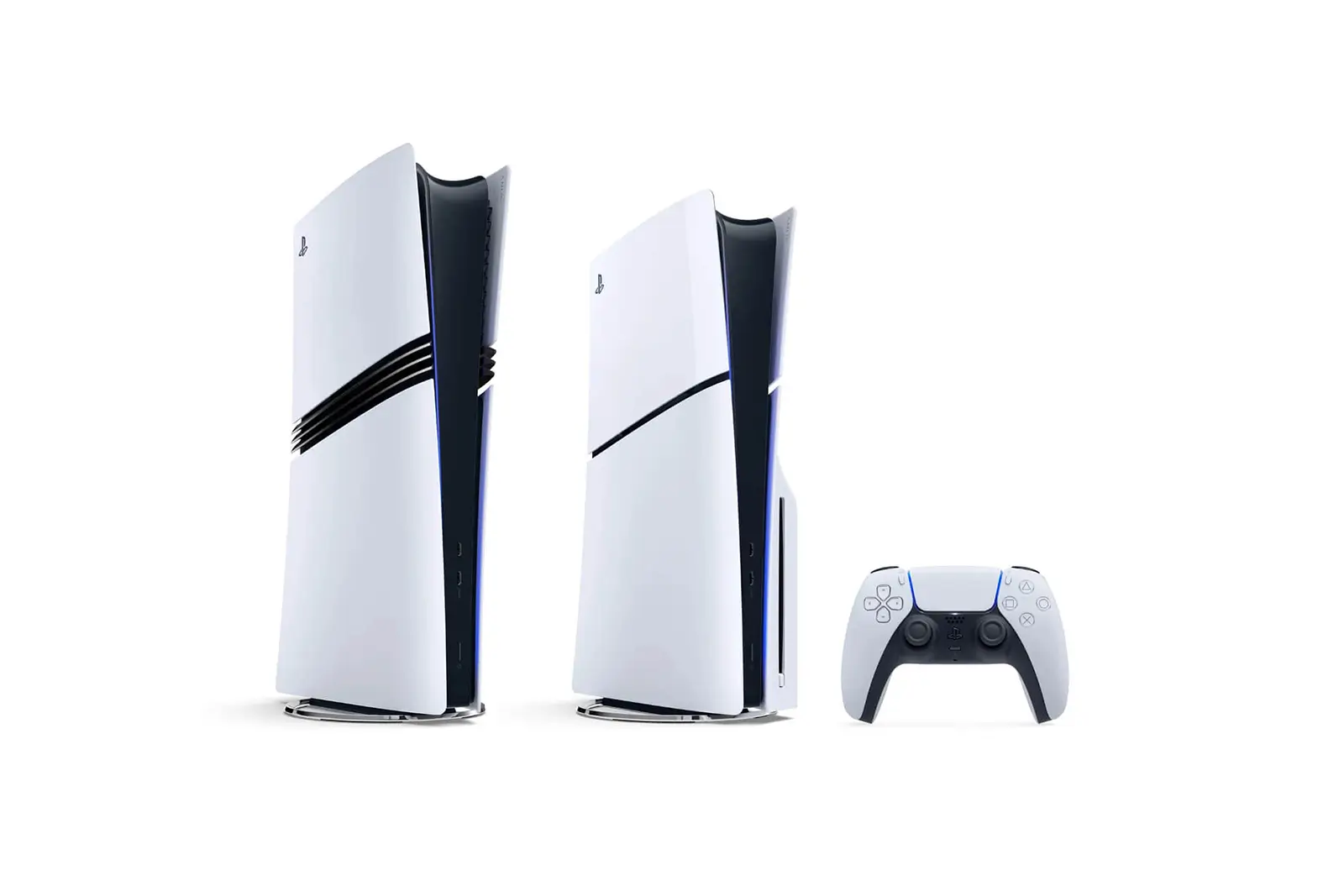
Installing an M.2 SSD is straightforward and works the same way for PS5, PS5 Slim, and PS5 Pro.
- Prepare: Turn off and unplug your PS5. Touch a metal-grounded object to remove static electricity.
- Remove the cover: Remove the back plate covering the expansion slot.
- Remove the expansion slot cover: Unscrew the small metal cover over the M.2 slot.
- Adjust the spacer: Move the spacer to the groove matching your SSD’s size (usually 2280).
- Insert the SSD: Hold the SSD’s edge, align it with the connector notch, tilt it diagonally upward, and firmly insert it all the way. Press it down and secure it with the screw.
- Reassemble: Put the covers back on and reconnect your console.
- Format: Turn on your PS5. A formatting guide will appear; follow the on-screen instructions.
External USB Storage (Alternative)
If you prefer a simpler solution, you can use an external USB drive, but it only works for PS4 games or storing PS5 games (you cannot play PS5 games directly from it). For PS5 games, an M.2 SSD is the way to go.
Final Verdict
A few settings changes can dramatically improve your PS5 gaming experience. Enable Performance Mode and VRR for smoother gameplay, calibrate HDR for better visuals, and tweak controller settings to extend battery life. When storage fills up, installing an M.2 SSD is a simple upgrade that lets you keep more games installed without deleting old favorites.