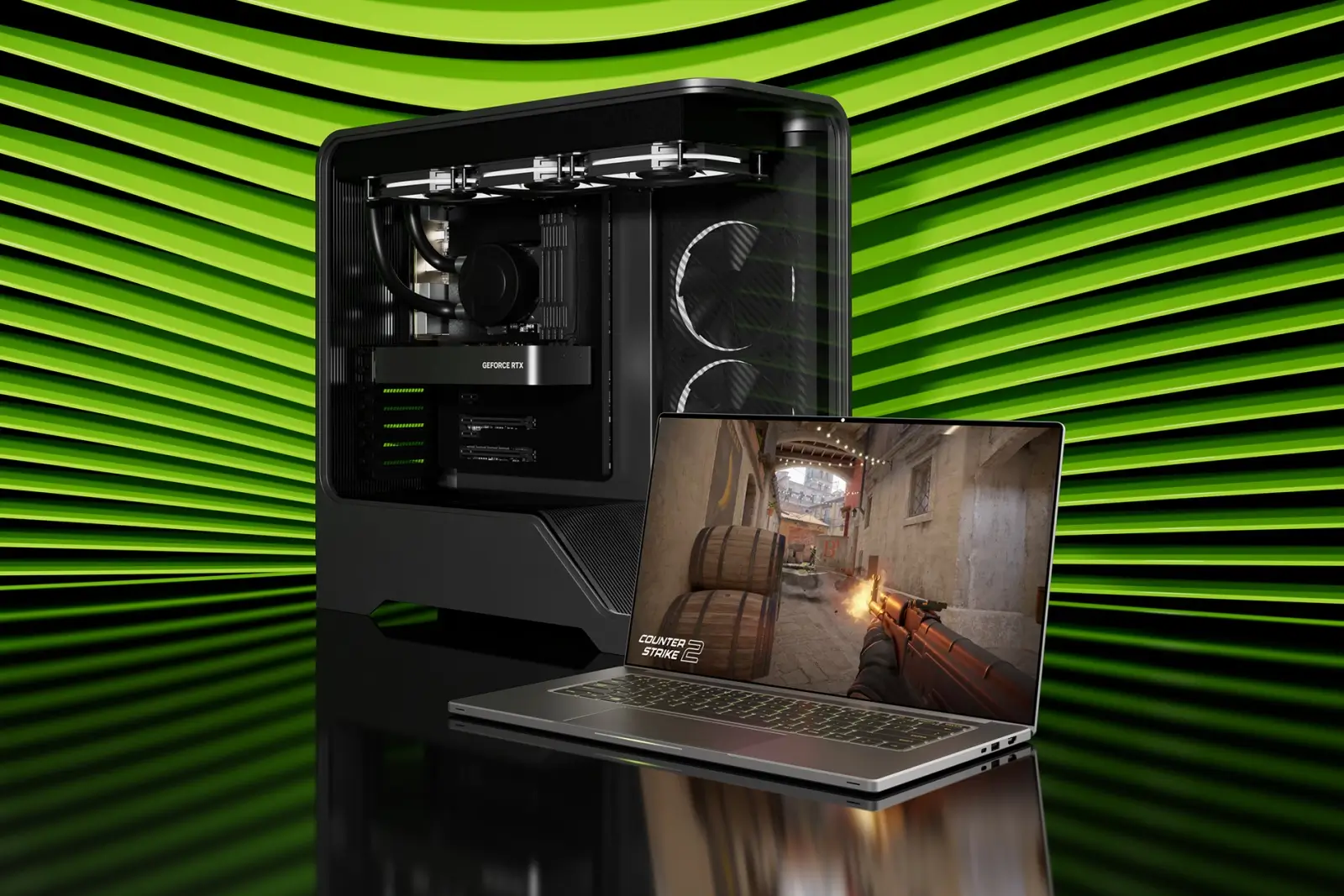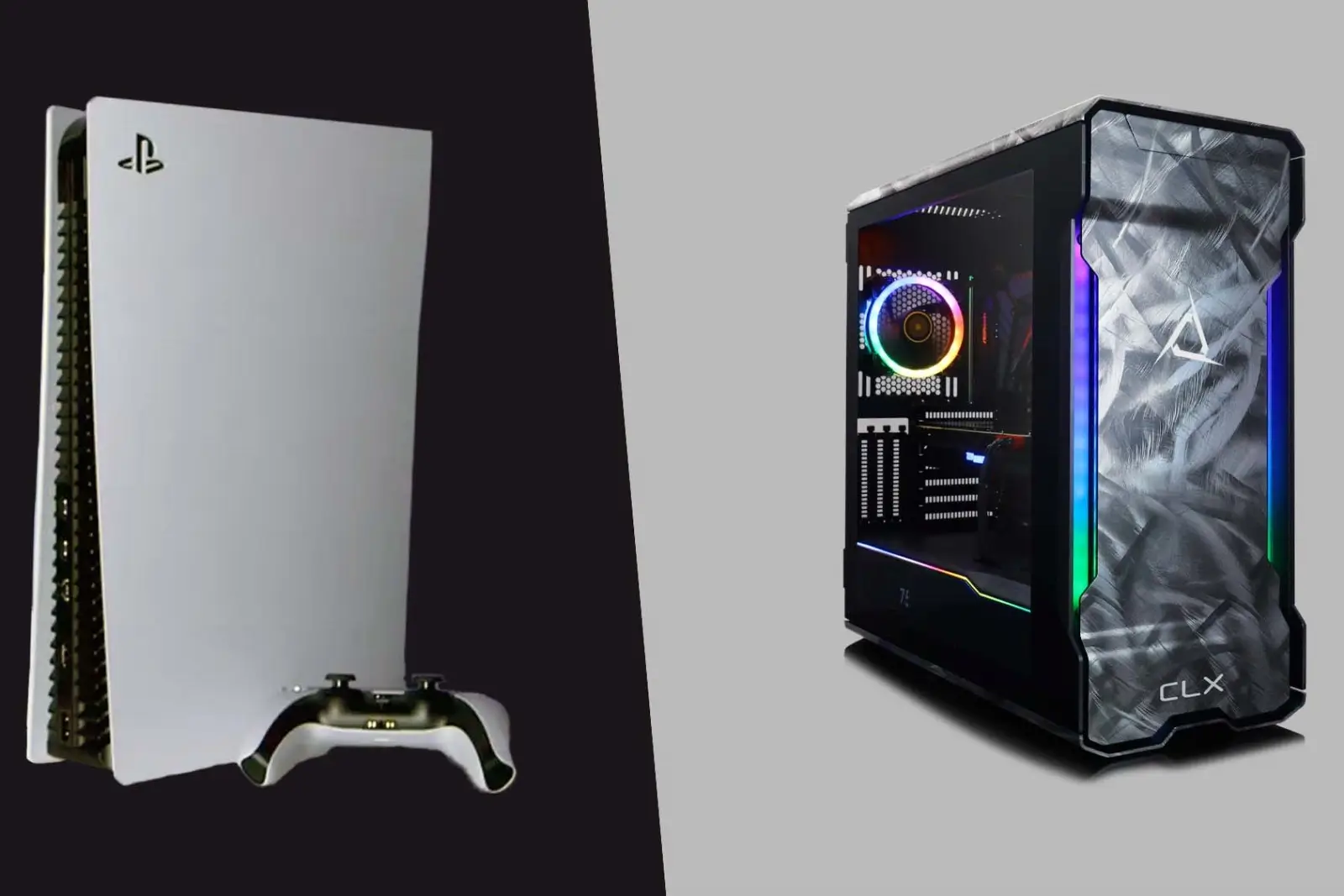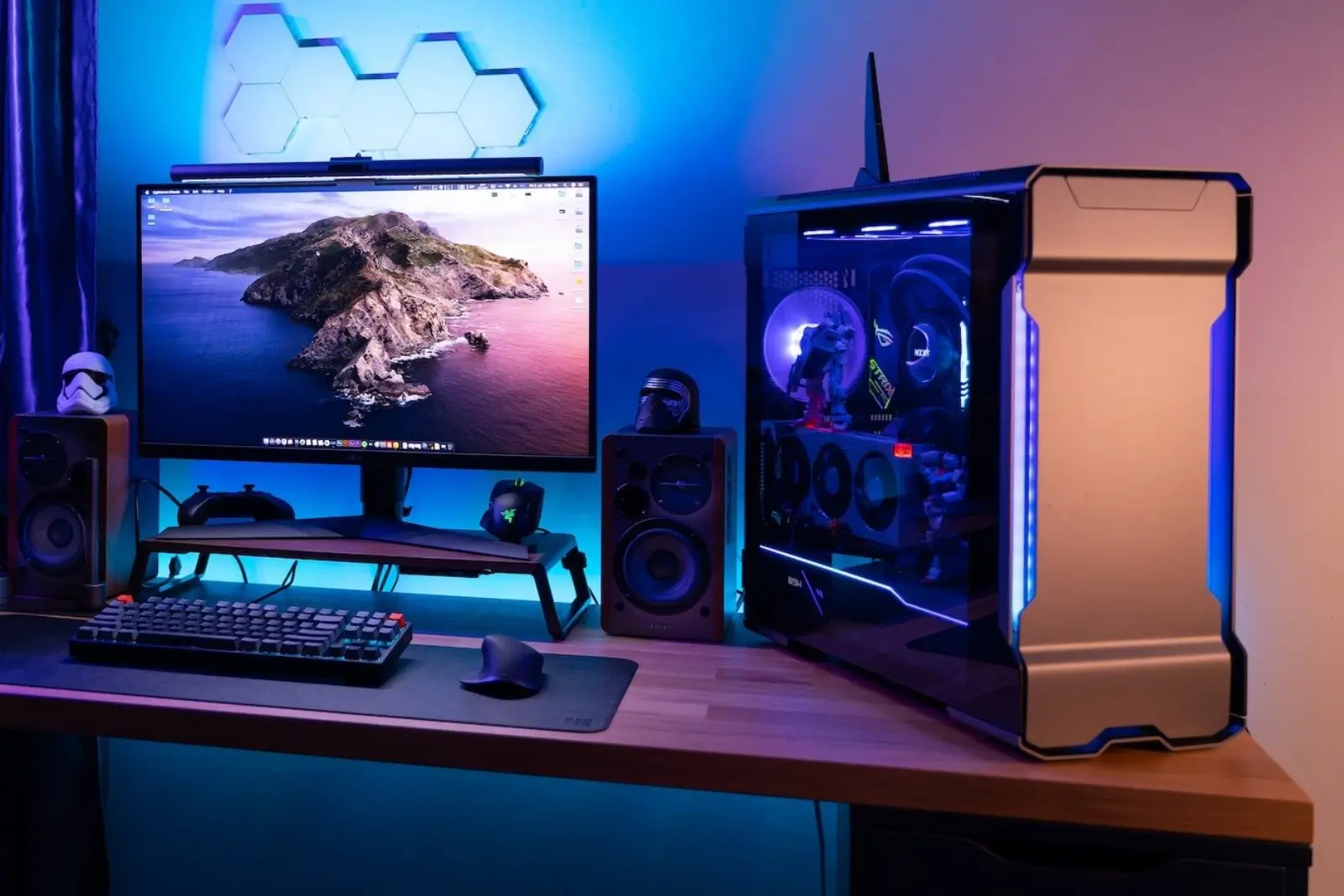
Building your own gaming PC can seem intimidating, but in 2026, the process is more accessible than ever. Modern components are designed with first-time builders in mind: CPUs cannot be installed the wrong way, RAM only fits in the correct orientation, and most cases come with illustrated assembly guides . Beyond the satisfaction of creating something yourself, building your own PC saves you $150-$300 compared to an equivalent pre-built system and gives you complete control over component quality . Most beginners complete their first build in 3 to 4 hours.
- Why Build Instead of Buy?
- Phase 1: Choosing Your Parts
- Phase 2: Tools and Workspace Preparation
- Phase 3: Step-by-Step Assembly
- Step 1: Install the CPU, RAM, and SSD on the Motherboard
- Step 2: Install the CPU Cooler
- Step 3: Install the Motherboard into the Case
- Step 4: Install the Power Supply (PSU)
- Step 5: Install the Graphics Card (GPU)
- Step 6: Connect Case Cables and Manage Wires
- Phase 4: First Boot and Setup
- Troubleshooting and Final Checks
This guide walks you through everything you need to know, from selecting parts to the final setup.
Why Build Instead of Buy?
Building your own PC is the best way to ensure your system meets your specific needs and preferences . When you choose every component, you know exactly what is inside your machine, and the door remains open for future upgrades as technology changes, your gaming tastes evolve, or your budget allows .
It’s a high-tech version of a Lego set—no soldering or heavy machinery is required, just plugging in some wires .
Phase 1: Choosing Your Parts
Before you start, gather these essential components :
A typical budget build targeting 1080p gaming in 2026 costs around $900-$1,100 for these core components, though prices fluctuate . Use online tools to check compatibility before purchasing.
Important: The 2026 RAM Shortage
Be aware that memory prices are currently volatile. High demand for AI datacenters has diverted RAM supply, making DDR5 significantly more expensive than in previous years . For example, maintaining a 32GB DDR5 standard can cost around $300 . Some builders are revisiting older, less expensive DDR4 platforms as a workaround, though this limits future upgrade paths . Shop around and be flexible.
Phase 2: Tools and Workspace Preparation
Before you start assembling, set up your workspace and gather the right tools :
- Workspace: A large, flat, non-carpeted surface with good lighting.
- Screwdrivers: A Phillips #2 screwdriver is the only essential tool for most builds. A magnetic one helps prevent lost screws. A Phillips #0 is helpful for small M.2 SSD screws .
- Anti-Static Strap (Recommended): Wearing one helps prevent electrostatic discharge (ESD) from damaging sensitive components .
- Organization: A small bowl or magnetic tray for screws will keep your workspace tidy .
- USB Flash Drive (8GB+): For installing your operating system .
- Motherboard Manual: Keep it handy—it contains crucial diagrams for your specific board .
Ground yourself by touching a metal object before handling any components.
Phase 3: Step-by-Step Assembly
Step 1: Install the CPU, RAM, and SSD on the Motherboard
Do this before placing the motherboard in the case—it is much easier and safer .
- CPU: Open the socket lever, align the triangle marker on the CPU with the socket, and gently place it in. No force is needed. Close the lever .
- RAM: Insert the RAM into the slots recommended in your motherboard manual (usually slots A2 and B2, the second and fourth from the CPU). Press down firmly until both side latches click .
- M.2 SSD: Remove the heatsink cover, slide the SSD into its slot at an angle, press flat, and secure it with the M.2 screw .
Step 2: Install the CPU Cooler
Apply a pea-sized amount of thermal paste to the center of the CPU (if not pre-applied). Mount the cooler according to its manual, tightening screws in an X-pattern for even pressure. Connect the fan header to the “CPU_FAN” port on the motherboard .
Step 3: Install the Motherboard into the Case
- Install the I/O shield (the metal plate that goes in the back of the case) first if it’s not pre-installed .
- Carefully lower the motherboard onto the case’s standoffs, aligning the I/O ports with the shield .
- Secure it with the provided motherboard screws, being careful not to overtighten .
Step 4: Install the Power Supply (PSU)
Mount the PSU in the case’s designated area (often at the bottom) and secure it with screws. Connect the large 24-pin cable to the motherboard, and the 8-pin cable to the CPU power port near the processor .
Step 5: Install the Graphics Card (GPU)
- Remove the metal PCIe slot covers from the back of your case .
- Insert the GPU into the primary PCIe x16 slot (the one closest to the CPU) until it clicks .
- Secure it to the case with screws and connect the necessary power cables from the PSU.
Step 6: Connect Case Cables and Manage Wires
Connect the small front-panel connectors (power button, reset, LEDs, USB, and audio headers) using your motherboard manual’s diagram . This is often the trickiest part for beginners—take your time. Use zip ties or Velcro straps to route cables behind the motherboard tray for better airflow and a cleaner look .
Phase 4: First Boot and Setup
- Power On: Connect your monitor, keyboard, and mouse, then turn on the PC. If everything is correctly installed, you will enter the BIOS/UEFI screen .
- BIOS Configuration: In the BIOS, enable XMP or EXPO for your RAM so it runs at its rated speed (e.g., DDR5-6000). Confirm your SSD is detected. Save and exit .
- Install OS: Boot from your USB drive to install Windows 11 or your preferred operating system .
- Install Drivers: Download and install the latest drivers from your GPU manufacturer (NVIDIA, AMD, or Intel) and from your motherboard manufacturer’s website .
Troubleshooting and Final Checks
If the PC does not start on the first try, do not panic. The most common culprits are:
- Poorly seated RAM (push it in harder) .
- Loose power cables (re-seat the 24-pin and 8-pin cables) .
- CPU cooler not plugged into the “CPU_FAN” header .
Once the system is stable, run a quick stress test (like Furmark for GPU and Cinebench for CPU) to confirm temperatures are healthy—GPU under 85°C and CPU under 80°C during load are good targets .
Building your first gaming PC is a rewarding experience that saves you money and demystifies the technology you use every day. With patience and this guide, you’ll have a custom machine that perfectly fits your needs and budget.