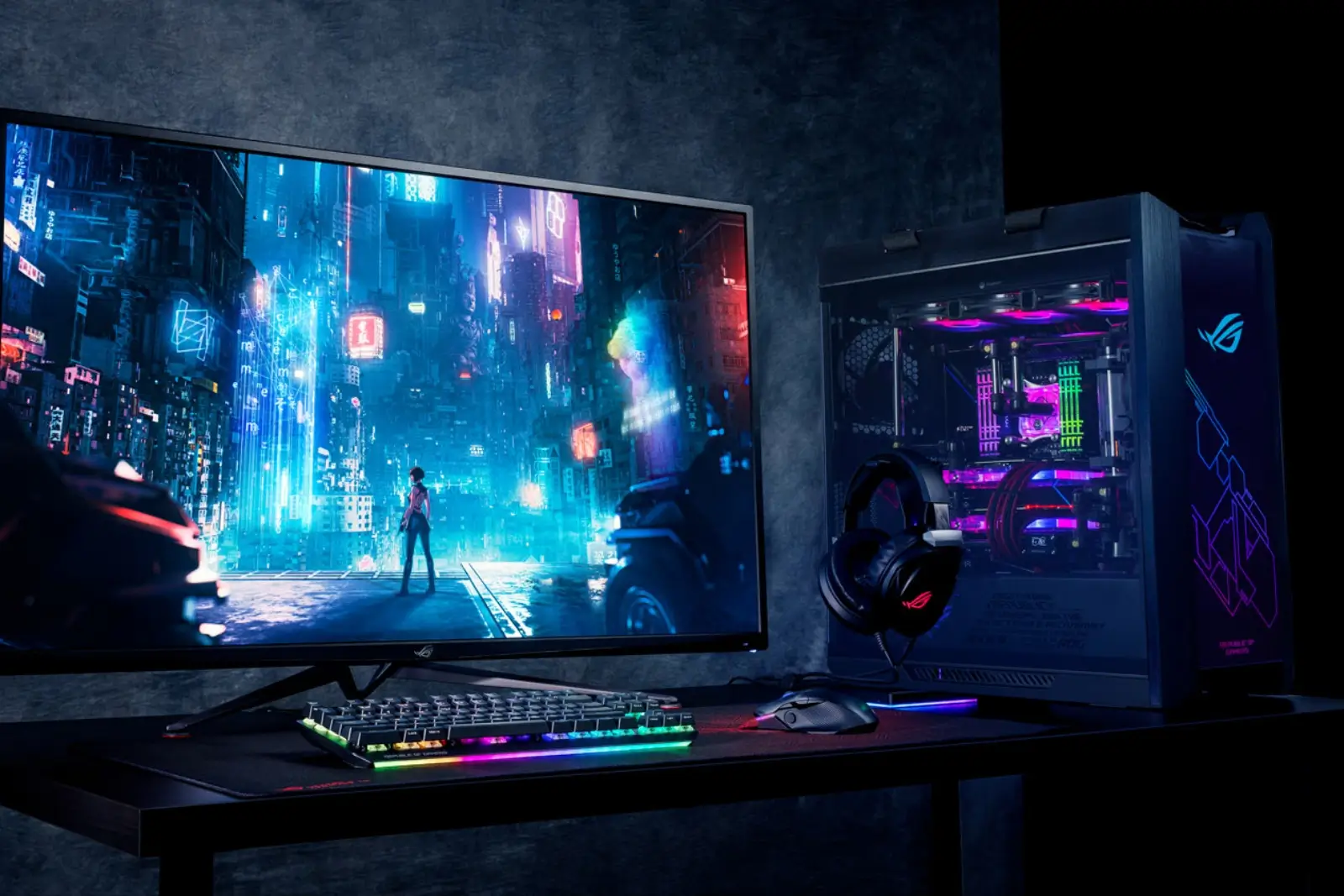
Low frame rates and stuttering can ruin the most immersive gaming experiences. Fortunately, you don’t always need expensive hardware upgrades to get smoother, more responsive gameplay. By making smart adjustments to your in-game settings, Windows, and driver configurations, you can often achieve a significant performance boost for free.
Here is a comprehensive guide to optimizing your PC for gaming.
Step 1: Start with the Basics
Before diving into individual graphics options, ensure your system is in good shape.
Update Your Drivers and Game: Graphics drivers are frequently updated with optimizations for new games and performance improvements. Use tools like NVIDIA GeForce Experience or AMD Adrenalin Software to keep your drivers current. Also, enable automatic updates for your games to ensure you have the latest performance patches.
Close Background Apps: Programs running in the background consume CPU and memory resources. Press CTRL+SHIFT+ESC to open Task Manager, then close any unnecessary applications. You can also limit what programs launch automatically by navigating to the “Startup” tab and disabling unwanted ones.
Check Your Windows Power Plan: To ensure your CPU and GPU aren’t being limited to save power, set your Windows power plan to “High Performance.” For laptops, go to Settings > System > Power & battery > Power Mode and select “Best performance” when plugged in.
Step 2: Key In-Game Settings That Boost FPS
Not all graphics settings are created equal. Some have a massive impact on performance with a minimal visual cost. Here are the most important settings to adjust.
- Shadows and Lighting: Shadows, volumetric lighting (god rays), and ambient occlusion are often the biggest performance hogs. Setting them to Medium or Low can yield a significant FPS increase.
- Anti-Aliasing (AA): AA smooths jagged edges. Instead of using demanding methods like MSAA, try using FXAA or, if you have an RTX card, NVIDIA DLAA, which offer similar quality with a smaller performance hit.
- Reflections: Screen Space Reflections (SSR) and other reflection effects can be demanding. Set reflections to Low or Medium.
- Ray Tracing/Path Tracing: Ray tracing can drastically improve lighting, but it can halve your frame rate. Unless you have a very powerful GPU, consider turning it off or using a lower setting. Path tracing is even more demanding and often not worth the performance cost in most games.
- Motion Blur, Film Grain, and Lens Flare: These post-processing effects add little to visual quality, can obscure visibility, and use up performance. They are safe to disable.
- Resolution Scale: Keep this at 100%. Lowering it will reduce image quality, while raising it (to downscale from a higher resolution) is extremely demanding.
Step 3: Leverage Smart Upscaling Technologies
Instead of lowering your resolution, which makes the image blurry, use intelligent upscaling technologies.
- NVIDIA DLSS: Renders the game at a lower resolution and uses AI to upscale it to your monitor’s resolution, providing a sharp image with a massive performance boost. Many games also allow Frame Generation, which creates AI-generated frames to further smooth out gameplay.
- AMD FSR: Works on a wide range of GPUs, including non-AMD cards. Like DLSS, it upscales the image for a performance gain.
- Intel XeSS: Intel’s alternative, which provides similar benefits.
Selecting these options over lowering your resolution provides a much sharper image while achieving high FPS.
Step 4: Windows Tweaks for a Performance Edge
Beyond in-game settings, Windows offers several features to enhance your gaming experience.
- Enable Game Mode: This tells Windows to prioritize resources for your game. Find it under Settings > Gaming > Game Mode.
- Enable Hardware-Accelerated GPU Scheduling (HAGS): This helps reduce latency. Find it under Settings > System > Display > Graphics > Advanced graphics settings. This is best used with a modern GPU.
- Disable VSync: VSync prevents screen tearing but can introduce significant input lag. If you have a monitor with G-Sync or FreeSync, enable that instead and turn VSync off.
Step 5: Advanced Optimizations
For users comfortable with deeper system tweaks, these options can help.
- Disable Memory Integrity: This is a Windows security feature that some users disable to improve FPS. However, doing so can make your system less secure, so this is not recommended for most users.
- MSI Mode for GPU: Enabling Message-Signaled Interrupts (MSI) on your graphics card can sometimes reduce stuttering and improve performance.
- Shader Cache: Shader compilation stutter can be a problem on PC. If a game allows it, running a shader pre-compilation step can smooth things out. If a game doesn’t have this, the problem will often lessen over time as the cache is built.
Tune for Your Hardware
There is no “one-size-fits-all” setting. The goal is to find the best balance between visual quality and performance for your specific hardware. Start by updating your system and drivers, then focus on reducing the most demanding in-game settings like shadows and reflections, and finally leverage intelligent upscaling like DLSS or FSR. With the right adjustments, you can achieve a much smoother and more responsive gaming experience without spending a dime.